How to use the C$ Marketplace on your browser and the app
The following how-to videos and document provide step-by-step instructions for navigating the Marketplace through a browser and app for both individuals and businesses.
For Individuals Registered under Citywide - Calgary - Videos
Online / Browser
Post an ad:
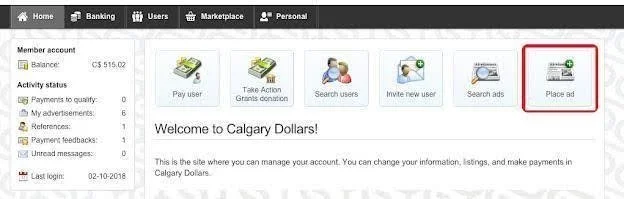
1. On the Home tab you can click on the Place Ad button.
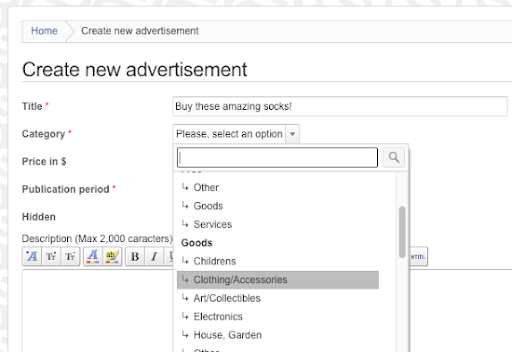
2. Enter a descriptive title for your ad and select a category from the drop-down menu.
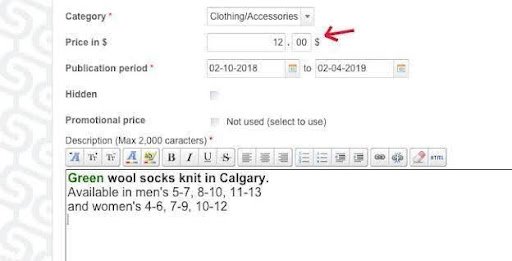
3. Enter the total price & type in a description of your product or services.
4. Scroll down and select the trade type (offer or request), advertisement type (goods or services) and the percentage (%) of Calgary Dollars (C$) you will accept.
In this example we are offering goods for 100% C$. That means someone could pay me C$12 for the socks. If I chose 50% C$, someone could pay me C$6 and $6 federal dollars for the socks.
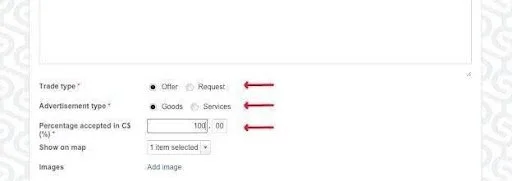
5. Images really help sell your goods and services. Click Add Image to begin.

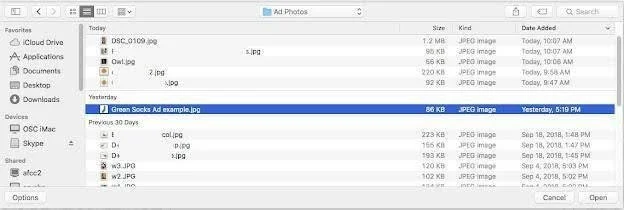
6. Use the pop-up to select the image you would like to upload from your computer. Then, click “Open” in the bottom right hand corner of the box. You can add up to three images per ad.
7. Click the orange Save button in the bottom right hand corner when you are finished. (Or, if you are ready to create another ad, you can click the Save and Create New Ad button on the left.)
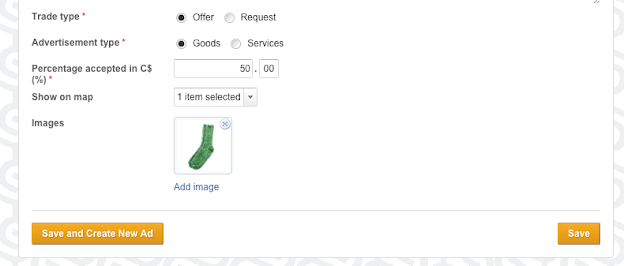
8. Look for the “Saved successfully”” dialogue box that will appear near the top of the window to ensure your ad has been saved. Your ad has been posted to the Marketplace!

9. Why not promote your ad on social media? Use @CalgaryDollars and #BeLocalYYC to get noticed. We will share and retweet you!
Extra tip: If you need more time to work on your ad, you can use the “Hidden” checkbox until you are ready for your ad to be public. Be sure you still save your ad before you leave the page! (This feature works as a way to save a draft of your ad.)
Make a payment to another User:
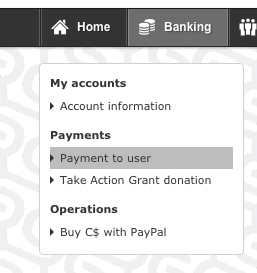
1. Click on the Banking tab.
2. In the menu box on the right hand side, select "Payment to User" under Payments.
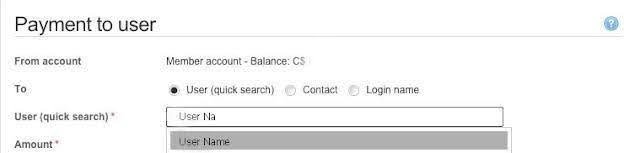
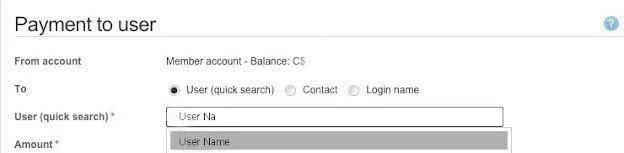
3. Type the name of the user you would like to pay in the User (quick search).
4. Type in the agreed upon amount you will pay.
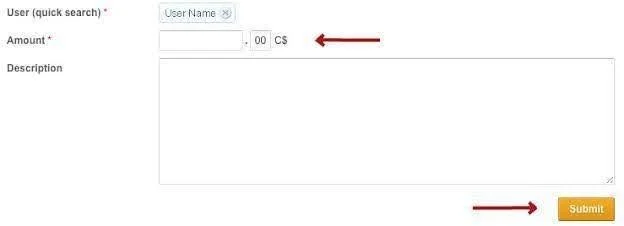
5. Click the orange Submit Button.
6. Review details and Click the orange Confirm button.

Upload a profile photo:
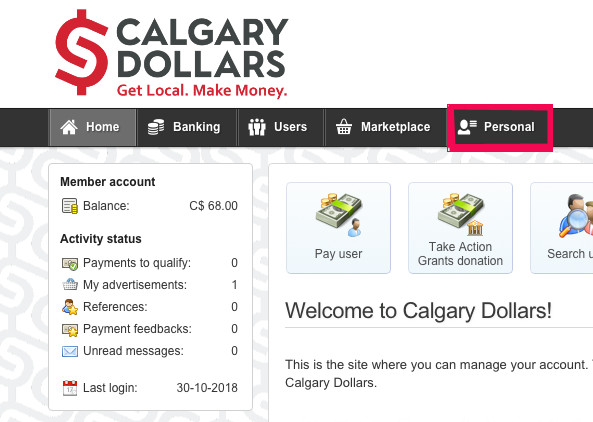
1. Log in to your user account and select the “Personal” tab.
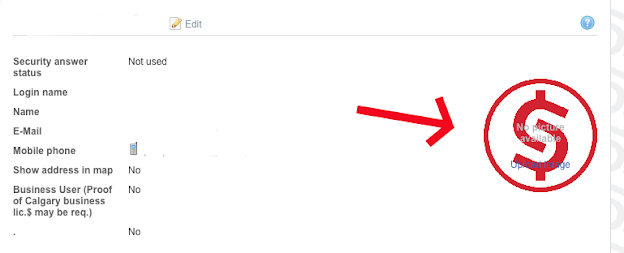
2. Click on the “Upload Image” user icon to the right of your screen.
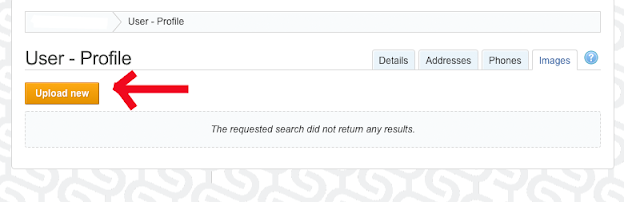
3. Click on “Upload new”.
4. Select the photo on your computer that you would like to use. It is best to save it under an easily identifiable name to make finding your photo simple.
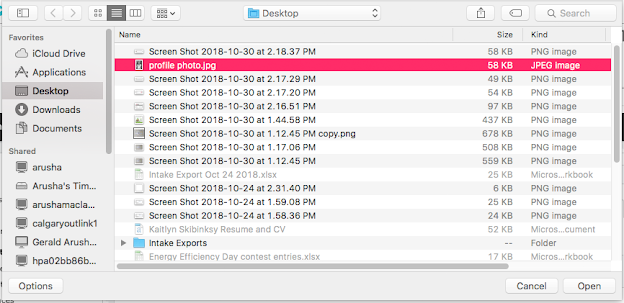
5. “Open” your photo of choice. Once this step is completed and you see this screen, you have successfully uploaded your profile photo!
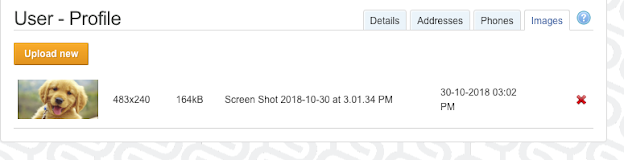
Check Account Balance:
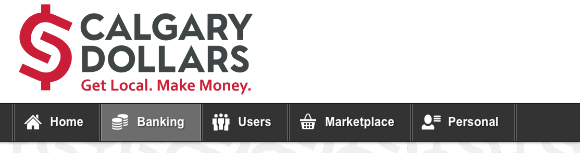
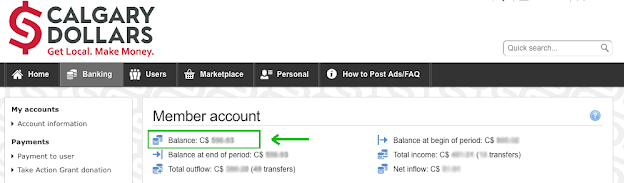
1. Click on the Banking tab.
2. At the top you will see your Account Information, and you can see how many C$ are in your account under “Balance”.
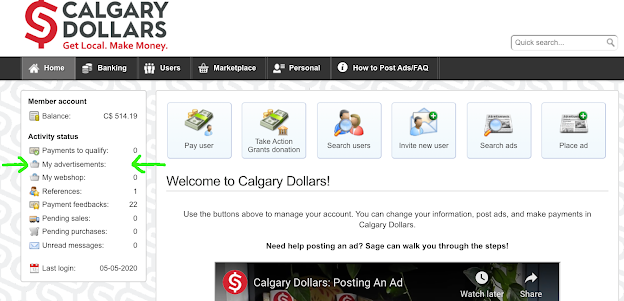
Renew An Ad:
1. Click on “My Advertisements” in the left hand menu box, and click on the ad you wish to renew or repost.
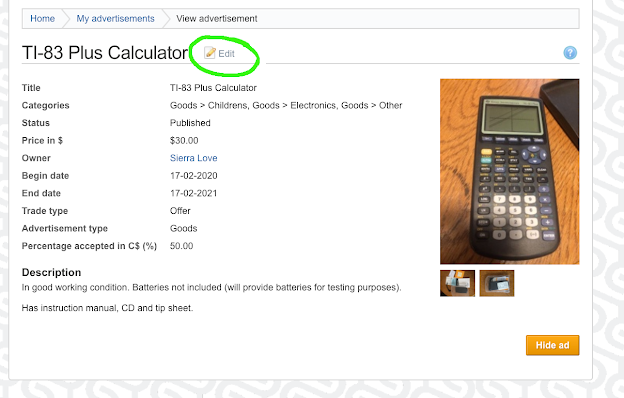
2. Click ‘Edit’.
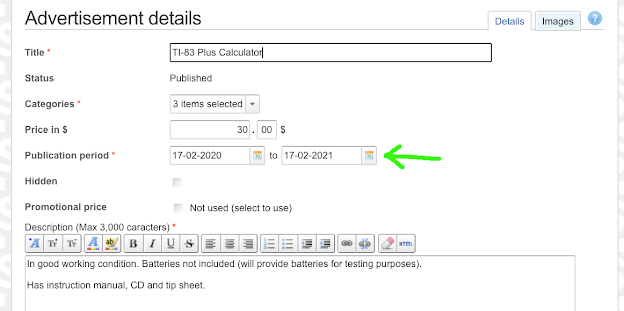
3. Update the length of time you would like your ad to be published for (‘Publication period’):
4. Scroll down and click the orange ‘Save’ button. A green box should appear at the top telling you that the save was successful!

Issue C$ Customer Loyalty Rewards:
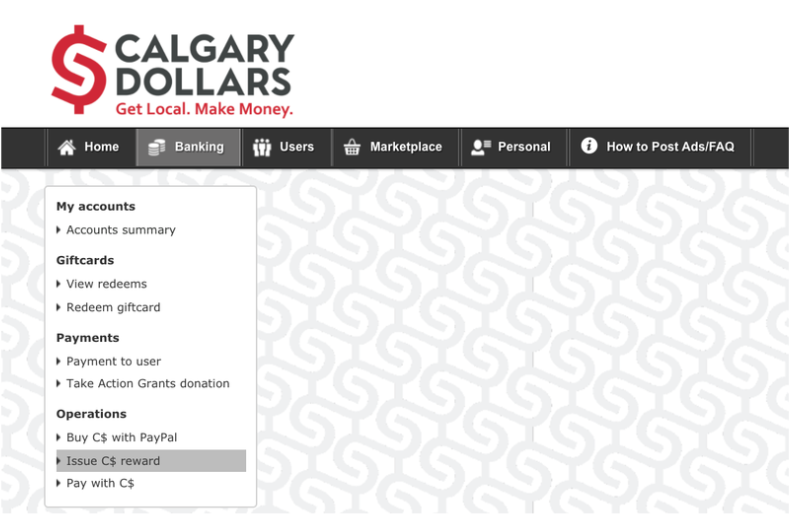
1. Select the Banking tab and click "Issue C$ Rewards" in the left hand menu.
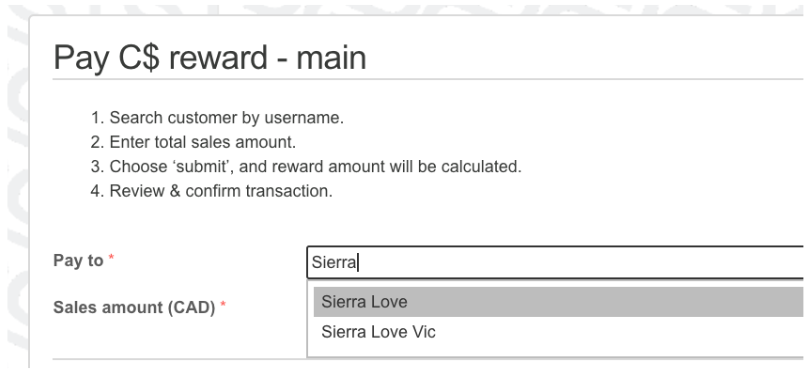
2. Enter the name of the C$ Customer (who has paid 100% CAD on their purchase) under ‘Pay to’:
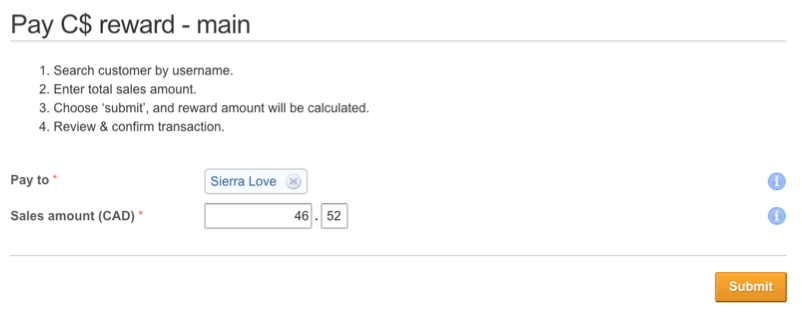
3. Enter the total amount of the purchase under ‘Sales amount’ and click Submit.
4. Review information and click Confirm.
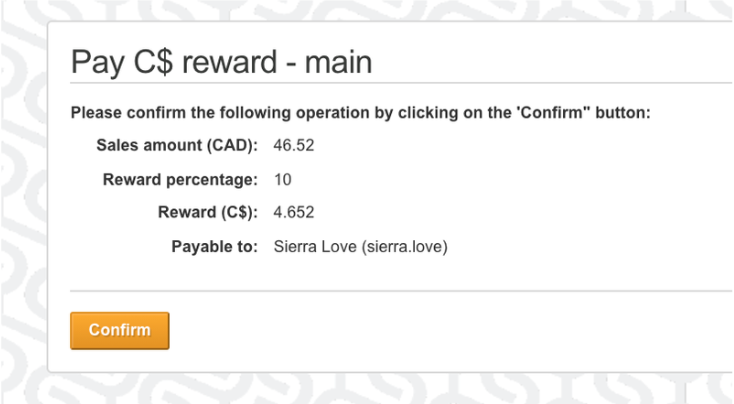
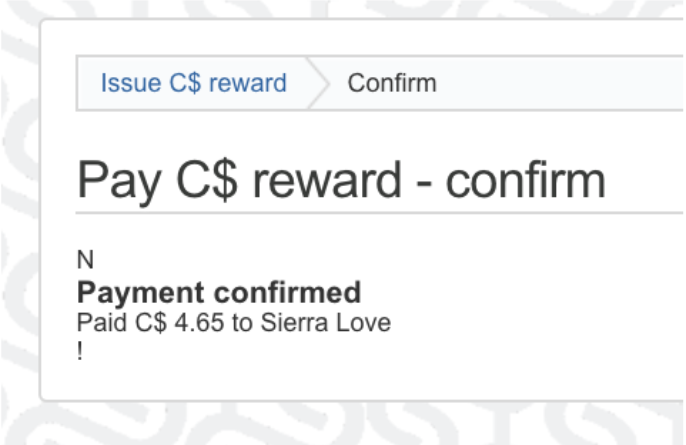
5. Done!
Customer Rewarded 10% back in Calgary Dollars. This doesn't come from your account, and it's free!
Calgary Dollars App
For Subnetworks: See all the ads on the Marketplace:
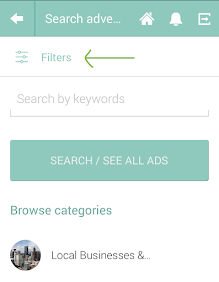
1. Click on the Marketplace button and then click on ‘Filters’.
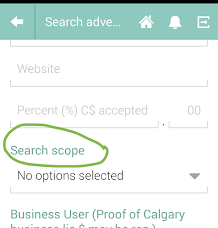
2. Scroll down to Search Scope and click the grey arrow for the drop down menu.
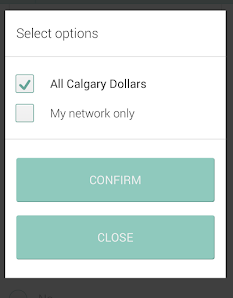
3. Select "All Calgary Dollars" and click Confirm (your app will always default to your community network).
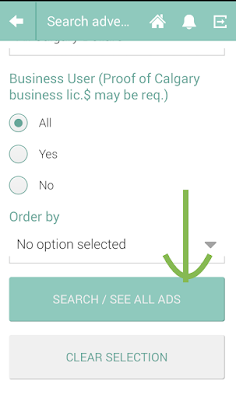
4. Scroll down and click "Search".
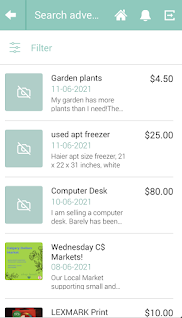
5. Browse ads from all of Calgary Dollars!
Post an ad:
1. Log in to the app.
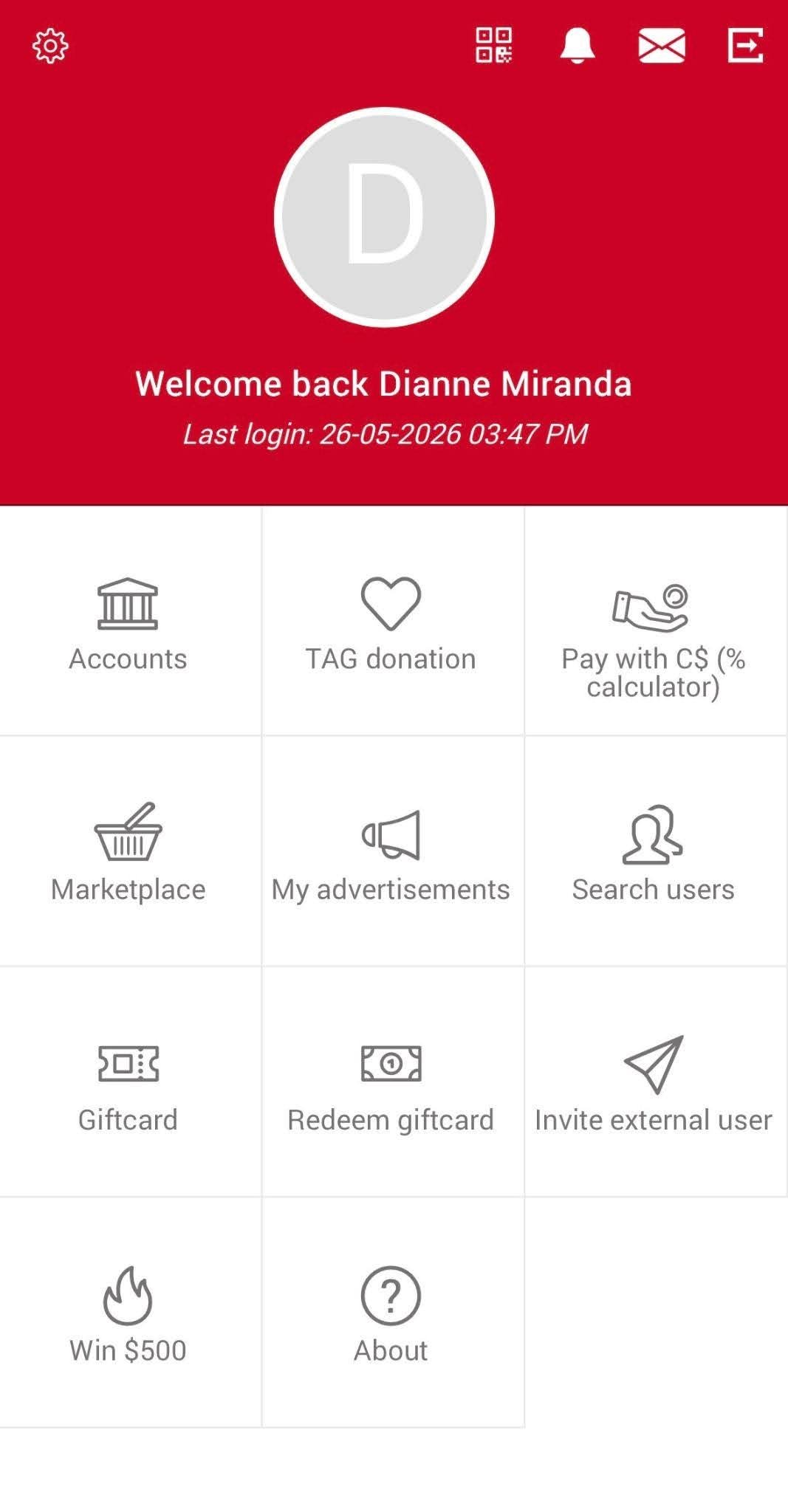
2. On the main screen click the “My advertisements” button.
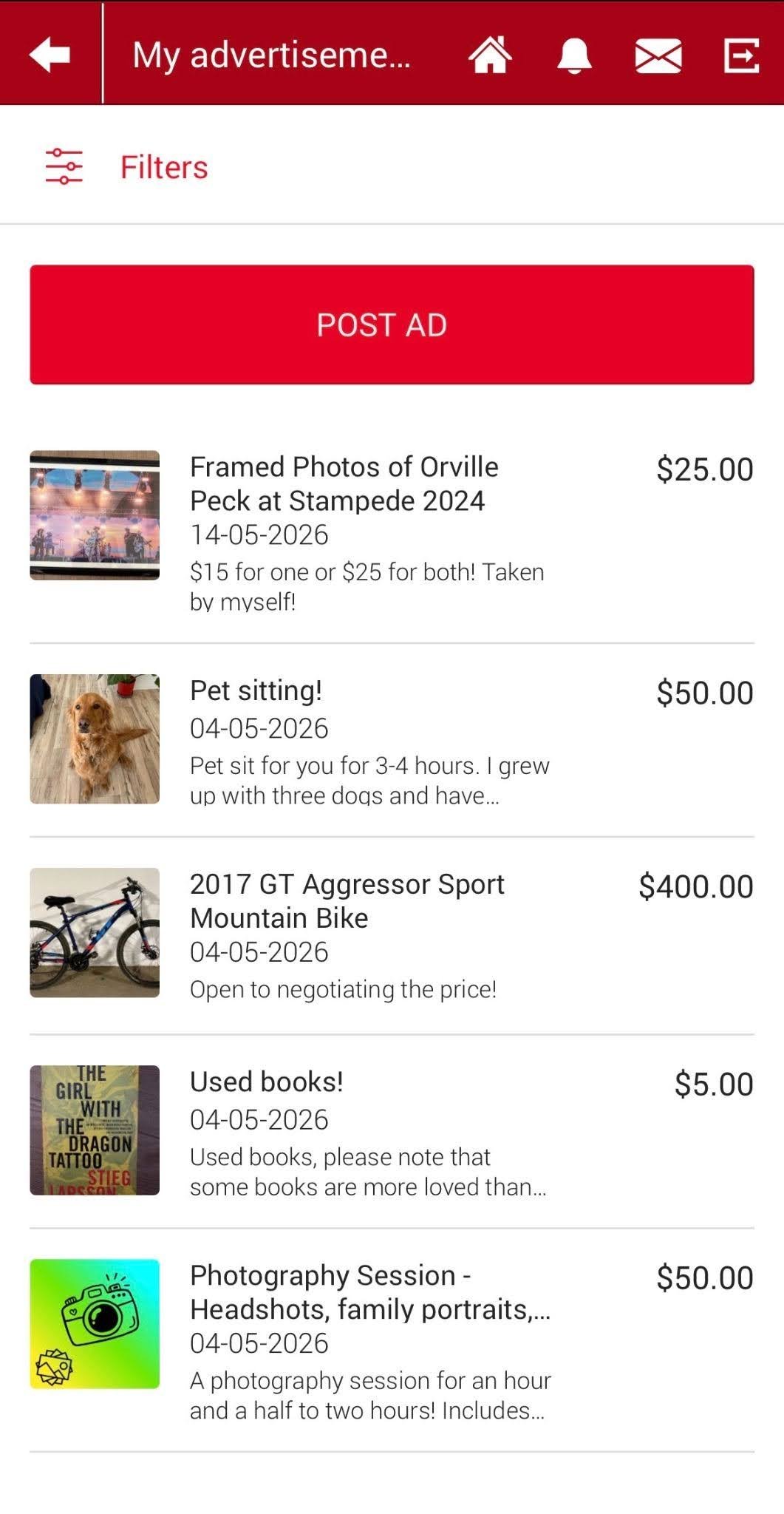
3. Click “POST AD.”
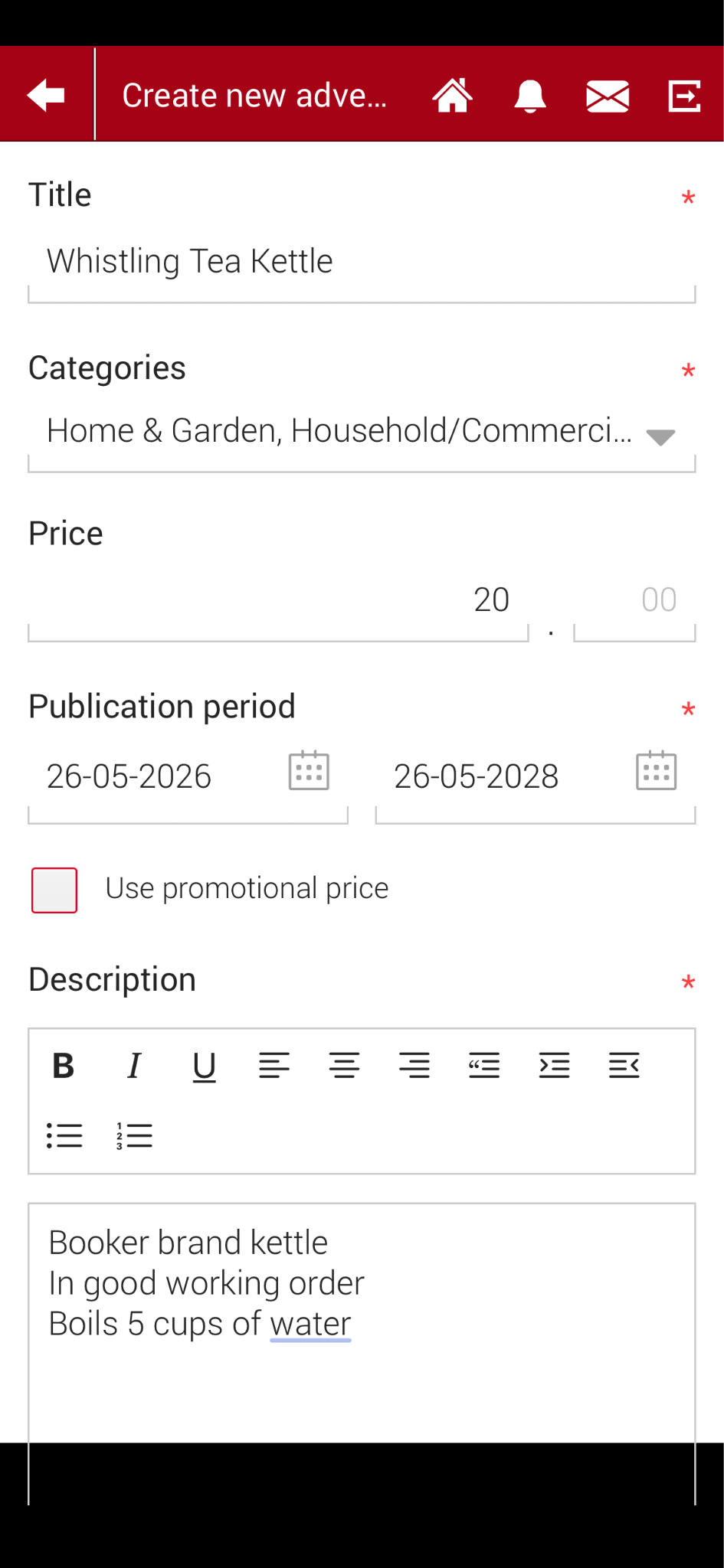
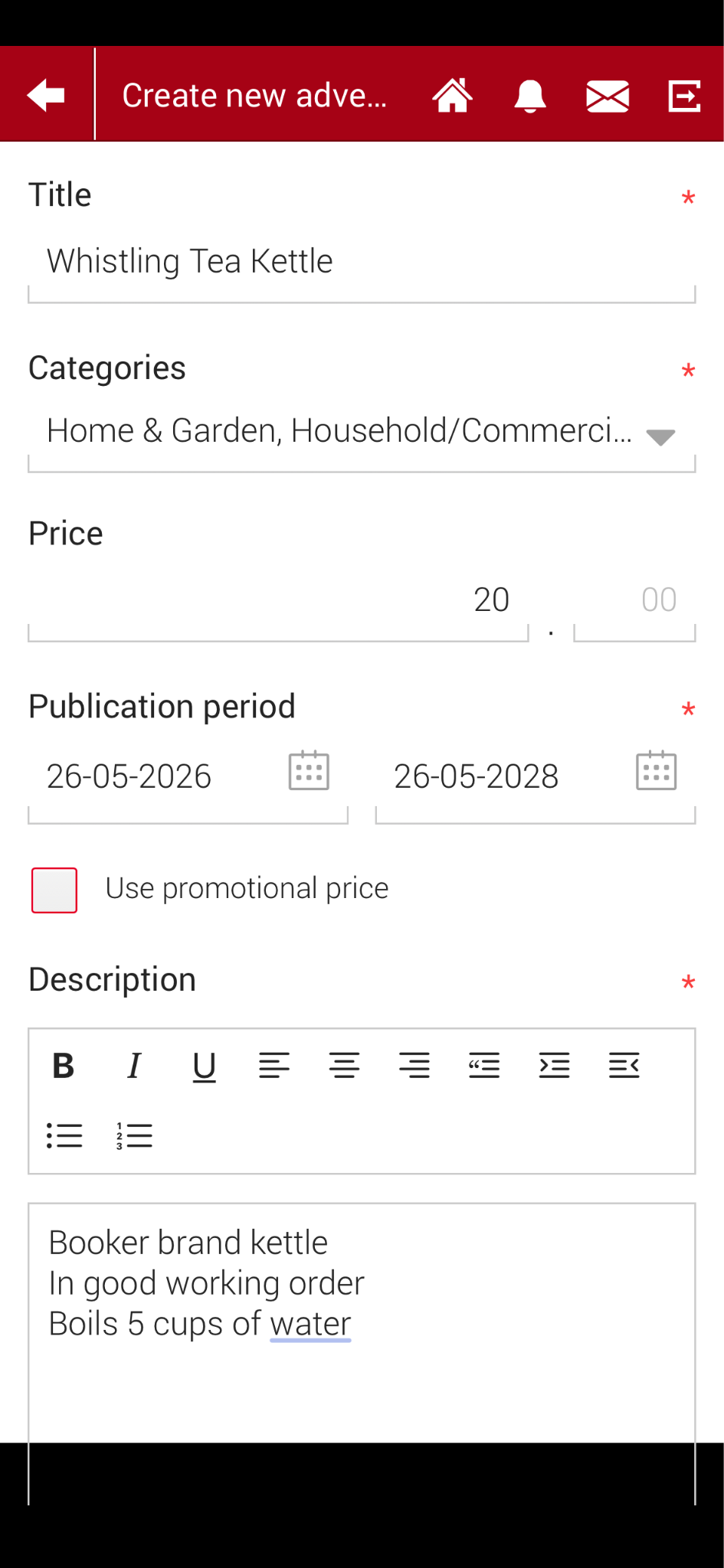
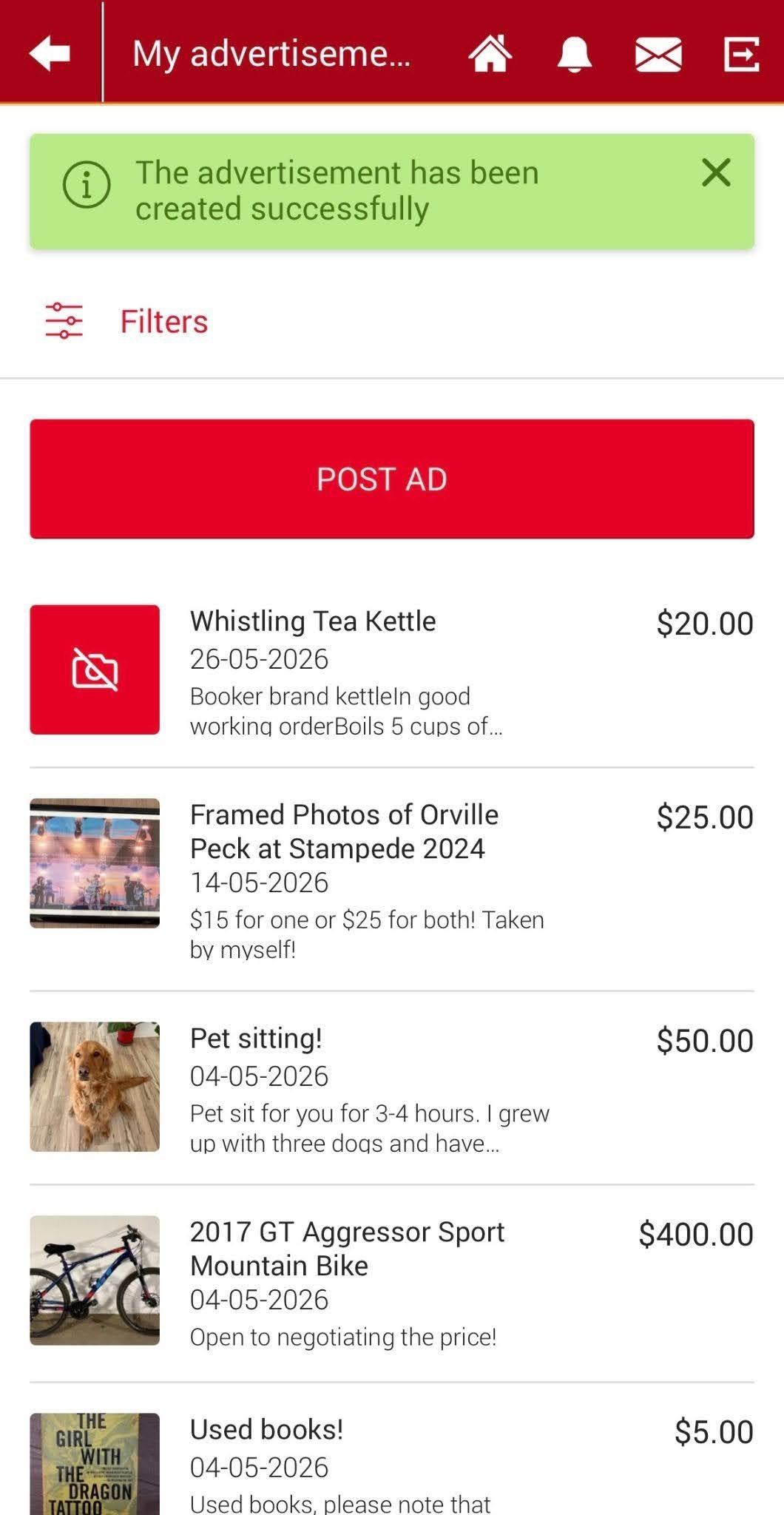
4. Create a descriptive Title for your ad (ex: Whistling Tea Kettle).
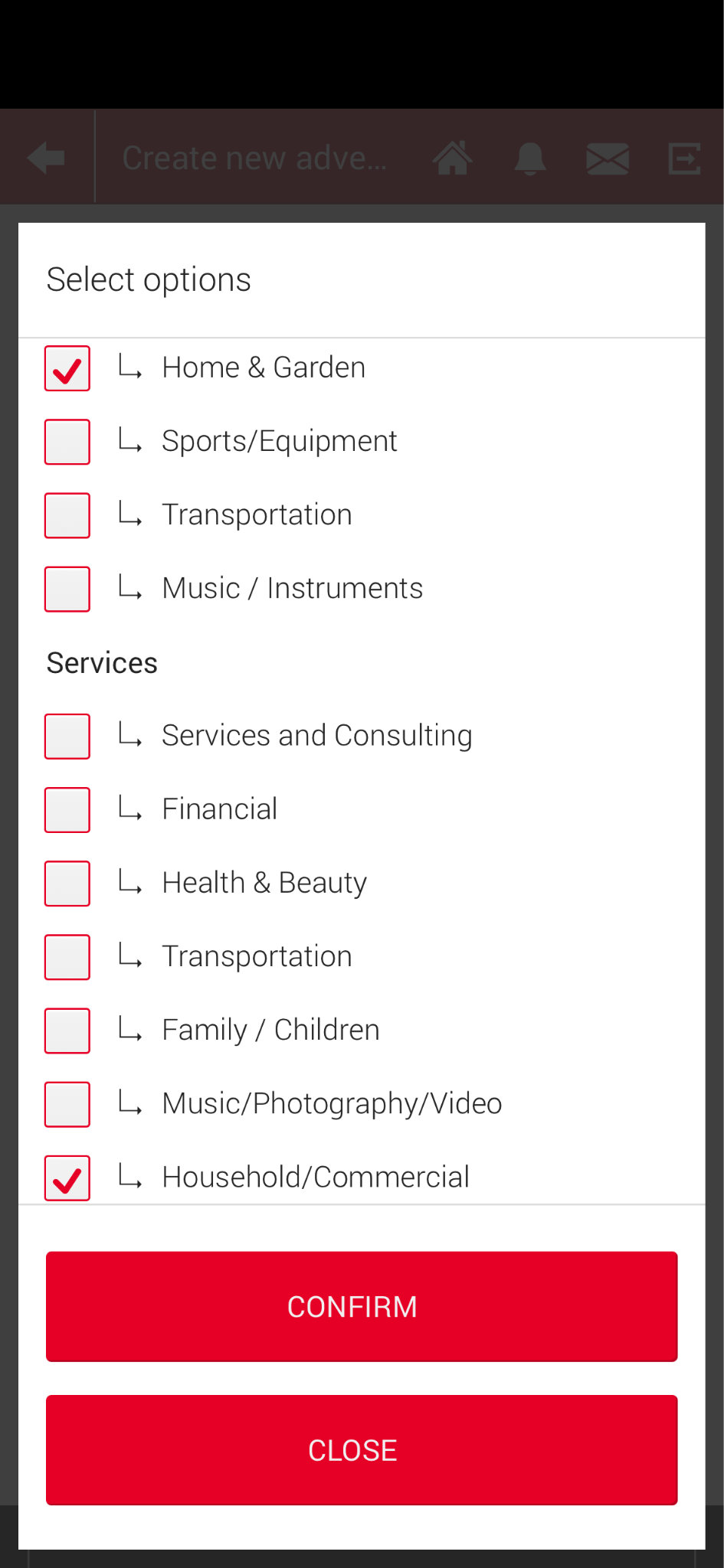
5. Select up to 5 categories, be sure to include your neighbourhood!
6. Set the price of your item or service.
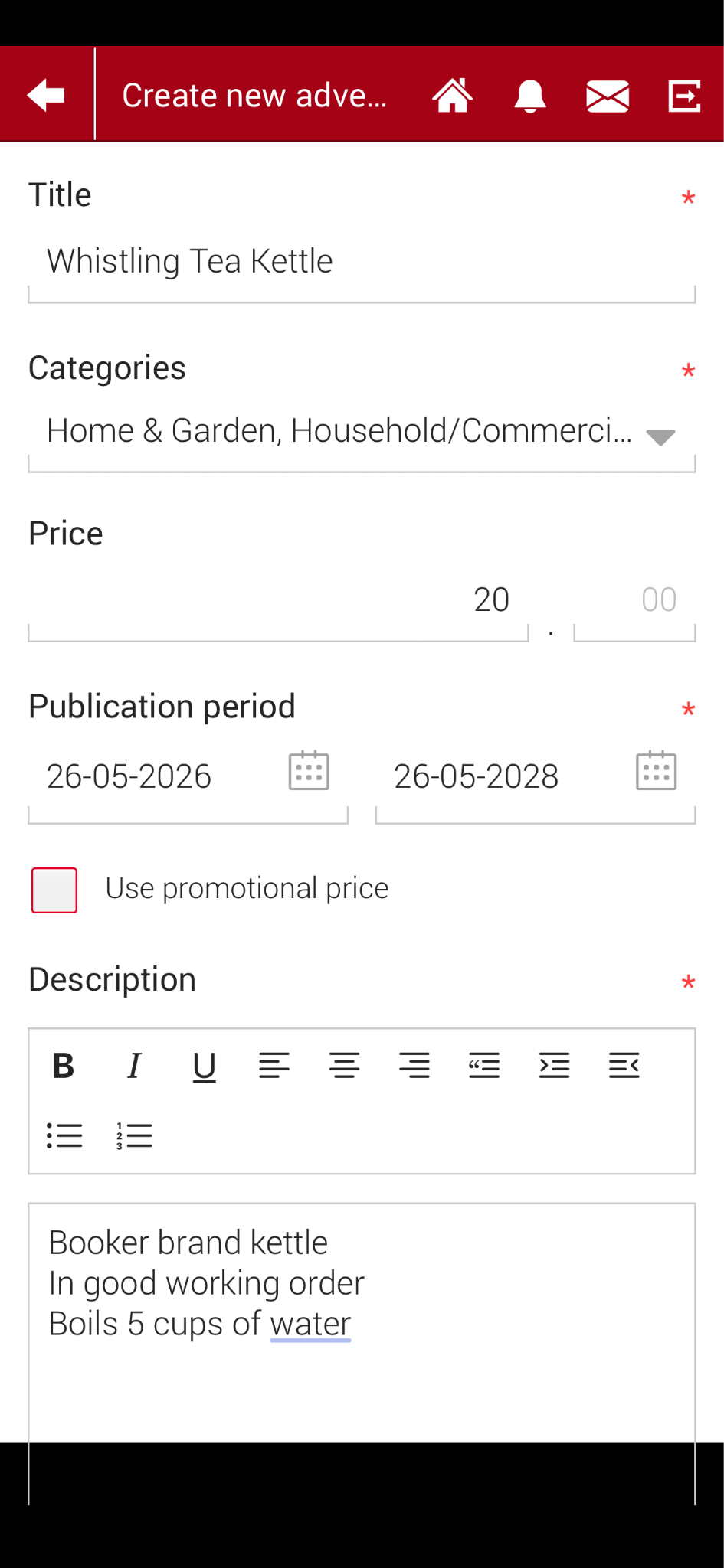
7 . Include a description that provides information a buyer might need (ex: Booker brand kettle, in good working order. Boils 5 cups of water.)
8. Choose a percent of Calgary Dollars you will accept [minimum 20%]. A higher percent will increase the likelihood of a sale!
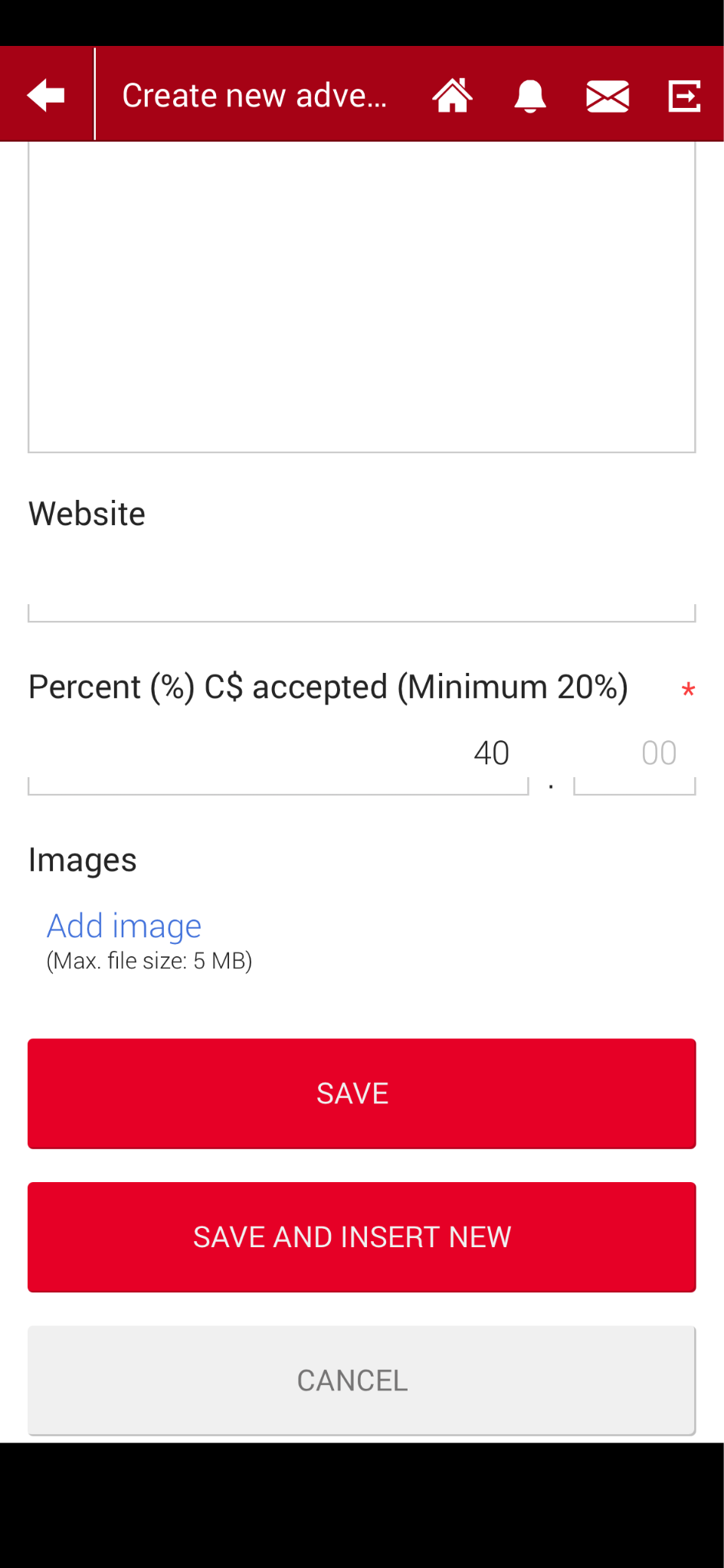
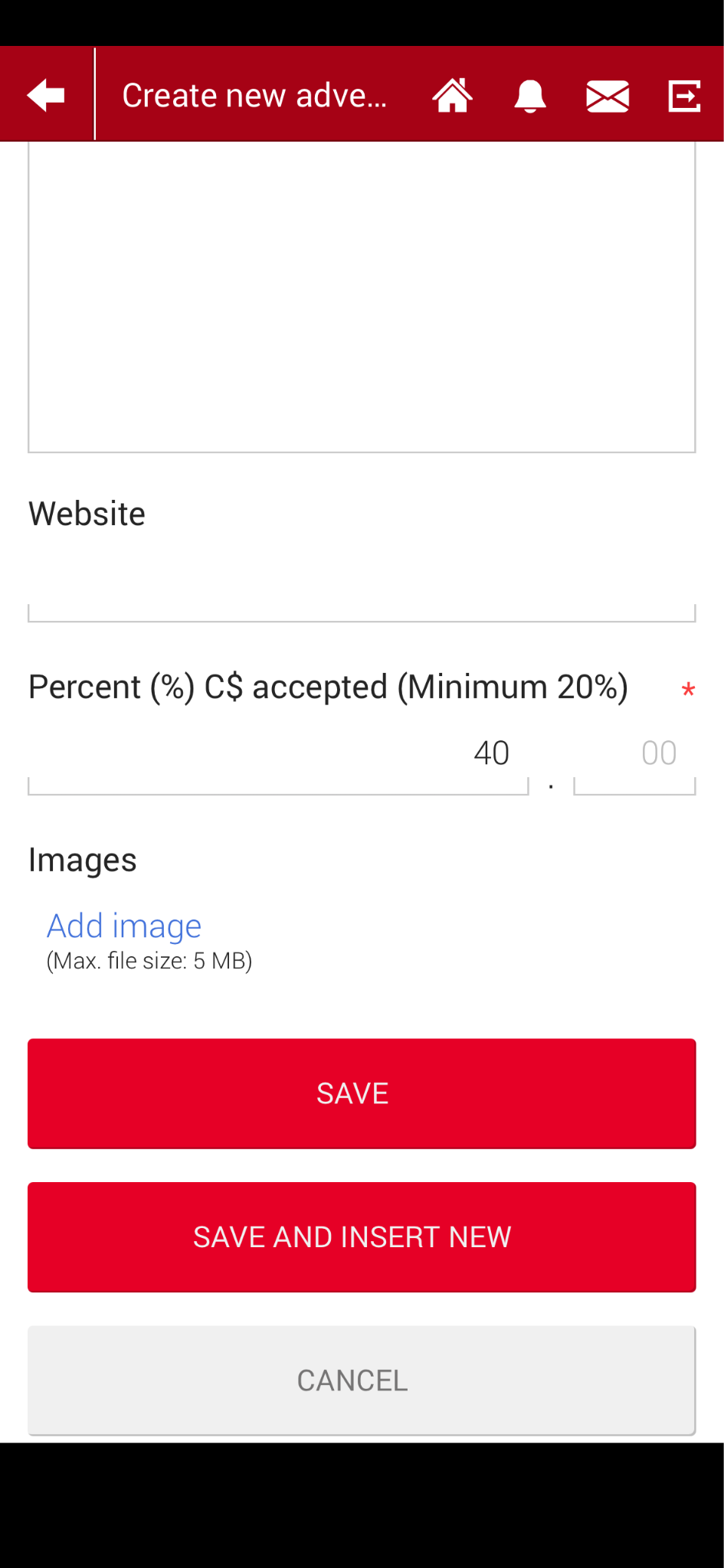
9. Choose an image by clicking “Add image” > Photo Library (or Take Photo). Allow the photo to finish uploading. Click the “Save” button.
DONE!
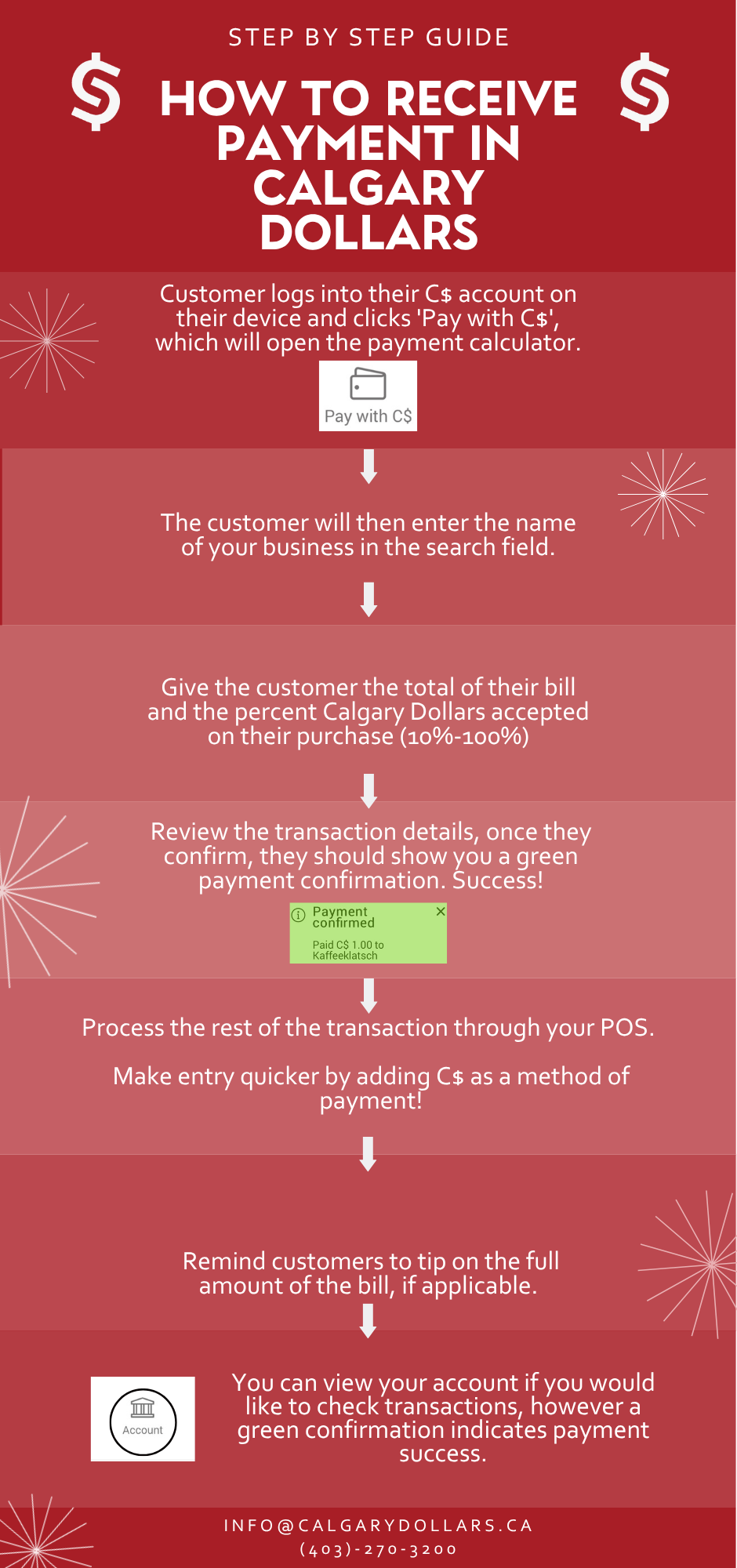
How to receive payment in C$